By Team @ Ledgerly
What does export to CSV mean? A plain guide
Export to CSV saves your data as a plain text table any spreadsheet can open. What goes in the file, how to open it in Excel, and common fixes.
Updated October 18, 2026
export to csvcsv formatcsv exportdata exportcsv file structure

Export to CSV means converting your app's tabular data into a plain-text file where each row becomes a line and each field is separated by commas. That creates a universal format that almost any spreadsheet or database can read.
You've probably clicked Export to CSV in a budgeting app, a contacts tool, or a dashboard and watched a file download without thinking about what changed behind the button. What changed is the app stopped showing your data as a polished screen and translated those records into a simple text table that other programs can understand. The format got a formal specification in October 2005 through RFC 4180, and the Library of Congress notes that CSV is supported by almost any software for storing or manipulating data, including relational databases, spreadsheets, and statistical tools.
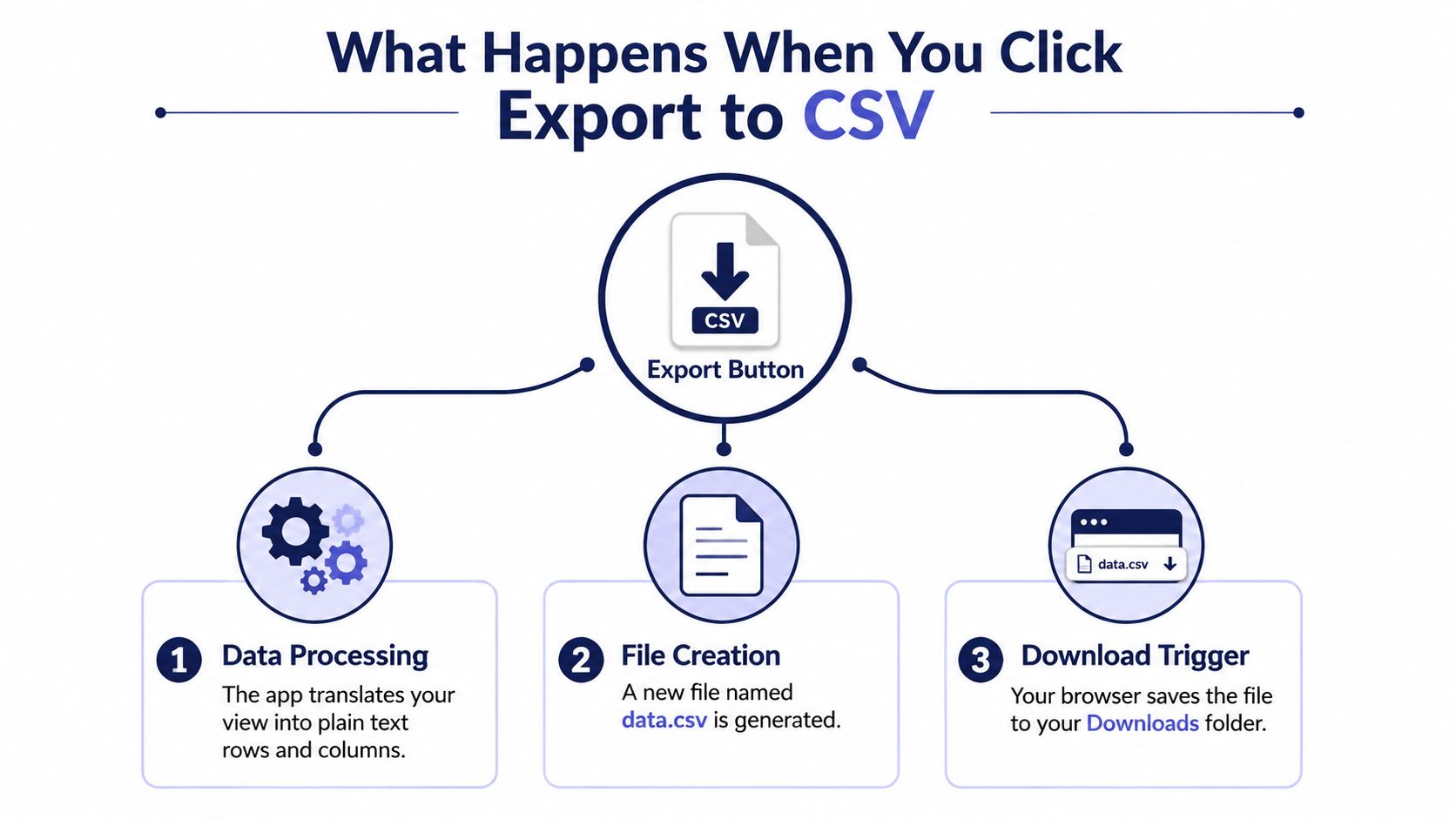
Table of Contents
- What Happens When You Click Export to CSV
- The Anatomy of a CSV File
- What You Keep and What You Lose in a CSV Export
- Encoding and Delimiter Pitfalls That Break Exports
- Opening a CSV export in Excel
- What is in a Ledgerly CSV export
- Where Exported CSV Data Goes Next
- CSV Export and Data Ownership
- A Practical Checklist for Clean CSV Exports
What Happens When You Click Export to CSV
You click a button, the screen pauses for a moment, and a file lands in your Downloads folder. The app takes the table it already has, whether that's transactions, contacts, inventory rows, or guest records, and turns each record into plain-text rows with comma-separated fields.
From screen view to text file
The simplest way to read this is as a translation from a polished screen into a file that other programs can parse. The app is not sending a picture of the table. It is sending the underlying values as text, so a spreadsheet, database, or reporting tool can read them later.
A CSV export works like copying the useful parts of a notebook page into a format that another notebook can understand without seeing the original page layout. That matters because the export strips away the visual design of your app and keeps the data structure instead. You gain portability, but you also lose the app's formatting, colors, filters, and any behavior tied to the interface.
The Library of Congress notes that CSV was one of the primary formats used by the UK National Archives for datasets selected for the National Digital Archive of Datasets between 1997 and 2010, and it remains a common downloadable format for open data. That history shows why CSV lasts: it is plain enough to move across systems, but simple enough to survive changes in software.
Practical rule: if your data has rows and columns, CSV is often the easiest way to move it elsewhere without asking the other program to understand your app's layout.
Why almost every app offers it
Apps offer CSV export because it lowers the barrier between systems. A budgeting app can hand off transactions to a spreadsheet, a CRM can hand off leads to a mailing tool, and a reporting dashboard can hand off raw records to an analyst. The export button is a bridge, not just a download trigger.
That bridge also comes with trade-offs. A CSV file can be opened, inspected, filtered, archived, or imported into another system without special software. The file is plain text, so it stays readable even when the original app is gone. At the same time, it cannot carry everything the app showed you. Rich formatting, embedded charts, and many app-specific rules do not travel with the data, which is why a CSV export is useful for portability but limited as a full copy of the original experience.
The Anatomy of a CSV File
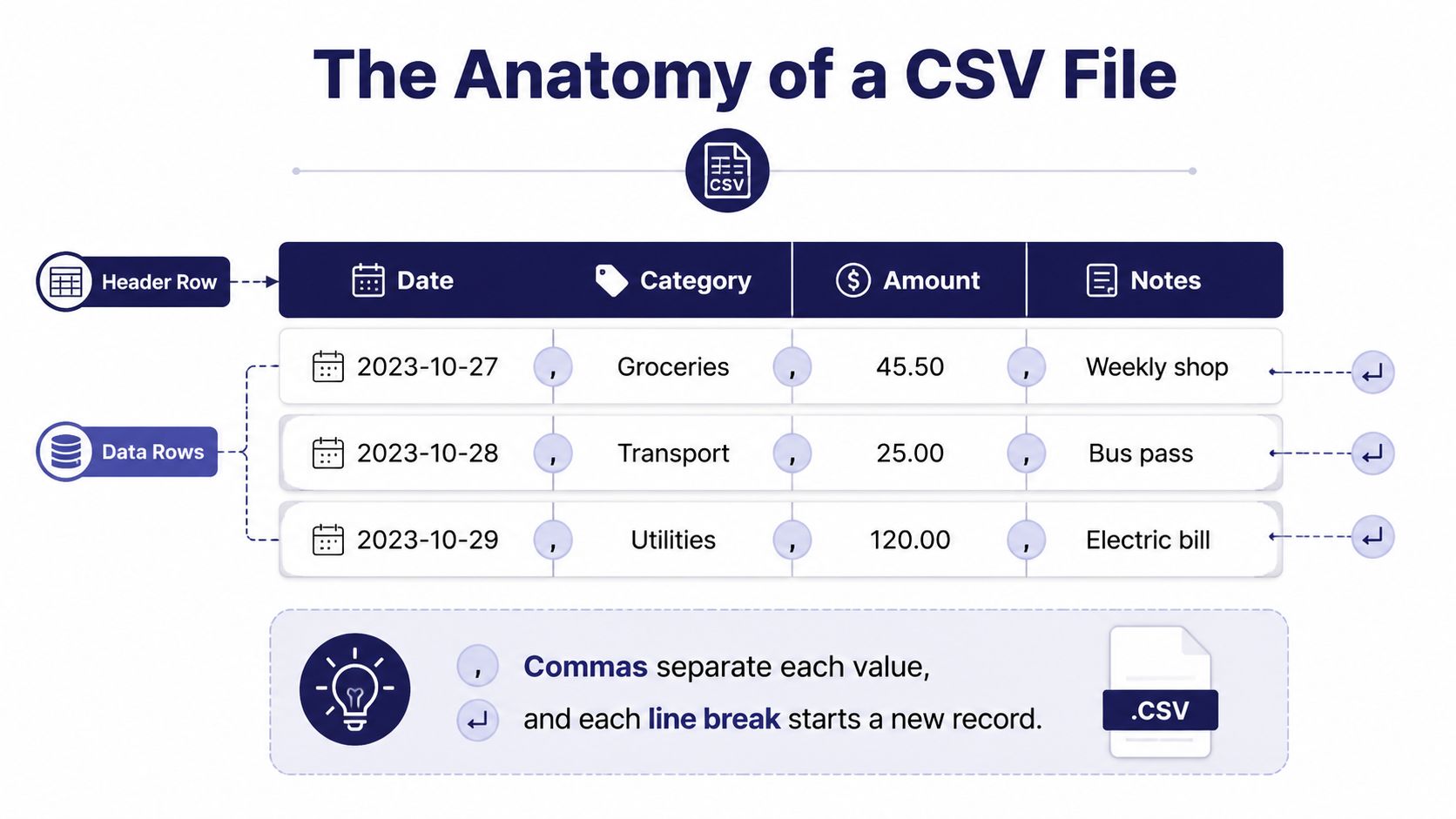
A CSV file looks simple because it is simple, but it still has rules. If you open one in a plain text editor, you'll usually see a first line with field names, then one line per record, with commas separating each value. RFC 4180 allows an optional single header row, and it expects a consistent number of fields across rows for reliable parsing, as described in the standard itself.
A budgeting example
Say you export a month of spending from a privacy-first budget app. The first line might name the columns, such as Date, Category, Amount, and Notes. Every line after that represents one transaction, so one row might hold a grocery purchase and another might hold a bus pass.
If you want to see a practical mockup of how a budget export is structured, the layout in [these CSV export examples] shows how the same data that appears in an app view becomes a flat text table.
The parts that matter most
- Header row. This is the row of labels at the top. It tells spreadsheets and import tools what each column means.
- Delimiters. In standard CSV, commas separate fields. That's the reason the format has the name it does.
- Line endings. Each new line starts a new record, so the file keeps a strict row structure.
- Double quotes. When a value contains a comma or a line break, the field can be wrapped in quotes so the parser doesn't mistake part of the value for a separator.
A CSV file can look ordinary in a text editor and still be perfectly valid. The trick is to read it as a set of instructions for software, not as a visual report. That mental shift makes troubleshooting much easier later.
What You Keep and What You Lose in a CSV Export
If your source view had colors, charts, filters, or multiple sheets, CSV will not carry those through. It preserves the data values, but it flattens the presentation. That trade-off is why CSV moves cleanly between tools.
The useful part survives
What you keep is the core table. Dates, amounts, names, and notes remain readable values that can move into another spreadsheet or database. That makes CSV useful for backups, imports, and analysis, because the content no longer depends on the original app's layout.
The rest gets flattened
Oracle's documentation on exporting to CSV notes that exporting from a spreadsheet can strip formatting, links, borders, formulas, and additional tabs. That is the nature of a plain-text table. CSV strips formatting, links, borders, formulas, and additional tabs, so the export keeps the information but not the spreadsheet features around it.
A budgeting app may show grouped sections, totals, and color-coded rows on screen, but the exported file gives you rows and columns only. If you need the data for accounting or import work, that is usually enough. If you need the exported file to preserve the way the app looked, CSV is the wrong tool.
CSV works like a clean transcript of a page. The meaning stays, while the styling and structure that helped you read it disappear. That is helpful when you want portability, but it also means you should check what the export preserved before you rely on it.
The better question is not whether you got a file. It is what that file kept, and what it flattened. Once you read CSV with that in mind, the format becomes much easier to judge.
Encoding and Delimiter Pitfalls That Break Exports
CSV files often fail in ways that have nothing to do with the data itself. The usual problem is that the file opens in a program expecting a different encoding or a different delimiter. That's where accented characters, currency symbols, and regional formatting can fall apart.
Why UTF-8 keeps coming up
Recent guidance still recommends UTF-8 because it's the broadest compatibility choice for CSV, especially when data crosses languages or markets. If a file is saved in one encoding and opened in another, characters can turn into garbled symbols or blank boxes. That's especially frustrating in finance data, where a single wrong character can change the meaning of a note or currency label.
The same issue shows up with delimiters. Some regions use semicolons instead of commas because commas may already be used inside numbers as decimal separators. If you import a file with the wrong delimiter setting, everything can collapse into one column or split incorrectly.
What to check when a file looks broken
- Open it in a text editor first. If the structure looks wrong there, the export itself may be the problem.
- Check the app's encoding option. If UTF-8 is available, use it.
- Match the delimiter on import. Excel and similar tools can misread a file if they guess the wrong separator.
- Look at special characters. Currency symbols, accents, and non-English names are the first things to watch.
If a CSV looks fine in one tool and broken in another, the file may be valid and the import settings may be wrong.
The deeper point is that CSV is best for simple row-based data with disciplined character encoding. It's less forgiving when the source app handles many languages, currencies, or structures that go beyond a single table.
Opening a CSV export in Excel
Double-clicking a CSV lets Excel guess how to read it, and it often guesses wrong. Import it instead, so you choose the encoding, the separator and the column types before the sheet is built.
- Windows: open a blank workbook, then choose Data, From Text/CSV. Set the file origin to 65001: UTF-8 and pick the separator yourself.
- Mac: choose File, Import, select the file, then pick Unicode (UTF-8) and the separator.
Two settings cause most of the trouble.
The separator. Excel follows your region. In much of Europe the comma is the decimal mark, so Excel expects semicolons and shows a comma-separated file as one wide column. Open the file in Notepad or TextEdit, see which character sits between fields, and choose that one when you import.
Column types. Excel turns some text into dates or numbers as it opens a file, and changing the cell format afterwards does not bring the original back. Import references, codes and anything with leading zeros as Text. Save the result as .xlsx and keep the original CSV next to it, so you can import it again cleanly.
| Separator | US and UK Excel | German or French Excel |
|---|---|---|
| Comma | Usually opens correctly | Often opens as one column, so import and choose comma |
| Semicolon | Often opens as one column | Usually opens correctly |
| Tab | Reliable when chosen on import | Reliable when chosen on import |
What is in a Ledgerly CSV export
Ledgerly exports the transactions of one budget over the dates you choose. The file has one header row and seven columns.
| Column | What it holds |
|---|---|
| Date | The day of the transaction, written YYYY-MM-DD |
| Description | What you called it |
| Amount | The amount, with a full stop as the decimal mark |
| Type | expense, income or transfer |
| Category | The category name |
| Account | The account name |
| Note | Your note, or empty |
The file is comma-separated and saved as UTF-8. Dates written YYYY-MM-DD sort correctly even as text. In German, French, Italian or Spanish Excel, use the import route above and choose comma as the separator, so the amounts are read as numbers.
Where Exported CSV Data Goes Next
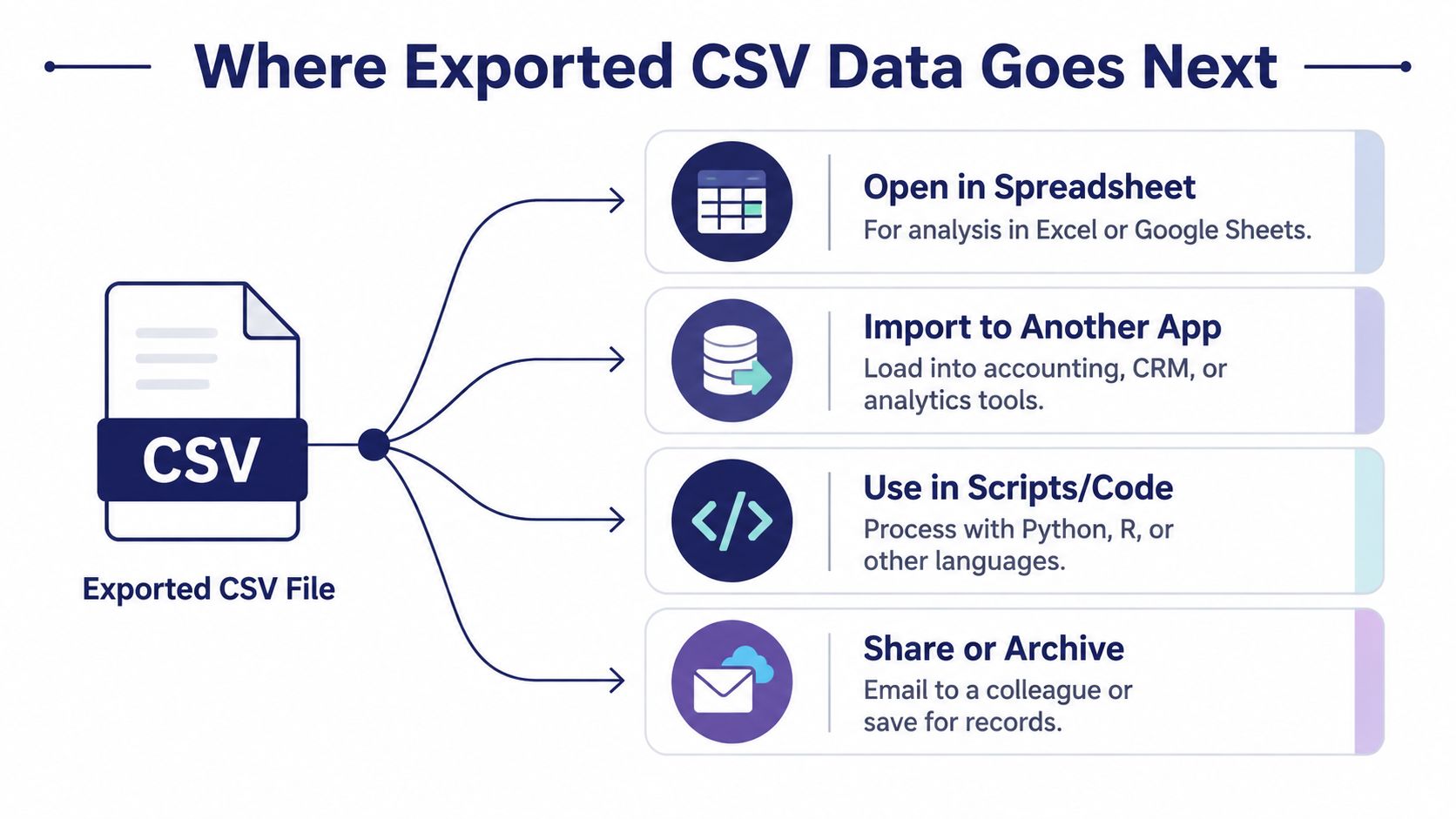
A CSV file is usually not the end of the process. It's a handoff point. Once you download it, the file typically moves into a spreadsheet, another app, a script, or an archive.
Common destinations
A spreadsheet app like Google Sheets, Microsoft Excel, or Apple Numbers is the most obvious next stop. Those tools turn the comma-separated lines back into cells so you can sort, filter, chart, or inspect the data. That's why CSV is the default bridge between app output and human analysis.
It can also move into another program. A CRM, accounting tool, or analytics platform may accept CSV imports so you can migrate records or update a dataset. In those cases, field names and delimiter settings matter more than visual appearance.
Some users send CSV data to code. Python and R can read the file directly, which makes CSV a convenient format for scripting and reporting. Others keep it as an archive, saving the text file in cloud storage or on a local drive as a portable record.
If you're comparing budget apps that support manual entry and export, this overview of budget apps without bank linking is useful context for why portable exports matter.
What each destination expects
- Spreadsheets. Expect clean rows, recognized dates, and the right delimiter.
- Other apps. Expect stable column names and a simple structure.
- Scripts. Expect consistent encoding and predictable headers.
- Archives. Expect human readability and long-term access.
The file doesn't change, but the receiving tool's assumptions do. That's why a CSV export can feel effortless in one place and awkward in another. The file is portable, yet it still needs the right landing spot.
CSV Export and Data Ownership
CSV export matters because it gives you a copy of your data that does not depend on one vendor's app to stay useful. That is more than a convenience feature, it gives you a practical way to keep control of your records. For privacy-first budgeting, that matters because the file can move between local storage and other tools without trapping your data in one place.
Ledgerly follows that approach. It keeps financial data on the device unless you switch on backup, avoids bank connections, and includes CSV export as a way to move your own records into another tool or into an archive. That fits the broader idea described earlier, where CSV stays readable across systems and over time.
Why ownership feels different with CSV
A plain text file can be opened later without the original app. You can inspect it, move it, back it up, or hand it to an accountant. That does not mean every export includes every detail, but it does make the data easier to carry from one system to another.
That is the practical value of export to CSV for privacy-conscious users. The app may control the interface, but it does not have to control the record forever. If the app changes, your data still has a path out.
The same logic shows up in everyday expense tracking. Ledgerly's day-to-day expenses app keeps manual entry and export inside the normal workflow, so exporting is part of record keeping rather than a rescue step. For people who want clear control over their records, that design choice matters.
A Practical Checklist for Clean CSV Exports
Before you export, ask what's included. Check the date range, the fields, and whether the app will drop formatting or formulas. If the export crosses languages or currencies, confirm that the app can save in UTF-8.
After the file downloads, open it in a plain text editor first. If the rows, commas, and quotes look right there, the file is probably structured correctly. Then open it in your target spreadsheet or import tool and verify that special characters, dates, and numbers display the way you expect.
Quick export habit
- Confirm scope. Know which rows and columns the export will include.
- Check what will be lost. Assume formatting, links, and formulas won't survive.
- Inspect the raw file. A text editor catches structure problems fast.
- Import with the right settings. Match encoding and delimiter choices.
- Test with a small sample. A few rows can reveal problems before a full import.
If a file looks odd, don't assume the data is gone. In many cases, the issue is the receiving app misreading encoding or separator settings. A careful export routine saves time later and makes the file much more dependable.
If you want a budgeting app that keeps your financial records on your phone, unless you switch on backup, and still lets you export them as CSV when you need to move, back up, or analyze them, try Ledgerly. It's built for manual entry, offline use, and clean data ownership, so the export you make is your own to work with.