By Team @ Ledgerly
How to back up your financial data
Where copies of your financial data should live, how often to make them, and how to check that a restore works before you need it.
Updated October 18, 2026
data backup best practicespersonal financeencrypted backuprestore testingdata retention
You open your budgeting app after a failed phone update and find that months of manually entered transactions have disappeared. The rent entries, subscription history, account adjustments, and notes that helped explain your spending are suddenly unavailable. A device can fail, a file can become corrupted, or a stolen phone can leave you without the only copy of your financial history.
That risk is especially relevant for privacy-conscious users of local-only finance apps. Keeping records on your phone limits unnecessary data sharing, but it also means you're responsible for creating and protecting recoverable copies. The strongest data backup best practices balance privacy, convenience, cost, and the practical question that matters most: can you restore your records when you need them?
Table of Contents
- Introduction to Data Backup Best Practices
- Plan a Resilient Strategy Using Expanded 3-2-1 Principles
- Set Up Secure Local Backups on Your Device
- Implement Encrypted Cloud Backups for Offsite Safety
- Define Retention and Versioning Strategies
- Test and Validate Restore Procedures Regularly
- Conclusion with Privacy Tradeoffs and Pro Tips
Introduction to Data Backup Best Practices
A backup is useful only when it contains the data you care about, remains accessible, and can be restored into a usable form. Saving a file once to the same phone that holds the original records doesn't provide much protection against device loss or storage failure. A more dependable approach layers a local export, a separate storage device, and an encrypted off-site copy.
For personal finance data, scope matters. Include transaction records, recurring items, account balances, transfers, category information, notes, and any budget configuration that helps you interpret the history. A plain CSV export can preserve the records themselves, while an app-specific backup may preserve more of the structure needed for a smoother restoration.
Practical rule: Treat your financial history as irreplaceable even if the file is small. Small files still represent months or years of decisions.
The privacy trade-off is straightforward. A local-only setup gives you stronger control over where raw financial information goes, but it won't automatically protect you from a damaged phone. Cloud storage improves availability after theft or physical loss, yet the provider may have access to the uploaded file unless you encrypt it before upload or use a storage mode with suitable end-to-end protection.
The workflow is therefore layered:
- Identify the records: Decide which financial data must survive a lost or corrupted device.
- Create local copies: Export the data and place it on storage separate from the phone.
- Add off-site protection: Upload an encrypted copy to iCloud or Google Drive.
- Keep versions: Preserve earlier states so accidental edits don't overwrite your history.
- Test recovery: Restore a copy in a safe environment and confirm that the records are complete.
The point isn't to collect backup tools. It's to build a routine that still works when you're stressed, offline, or using a replacement device.
Plan a Resilient Strategy Using Expanded 3-2-1 Principles
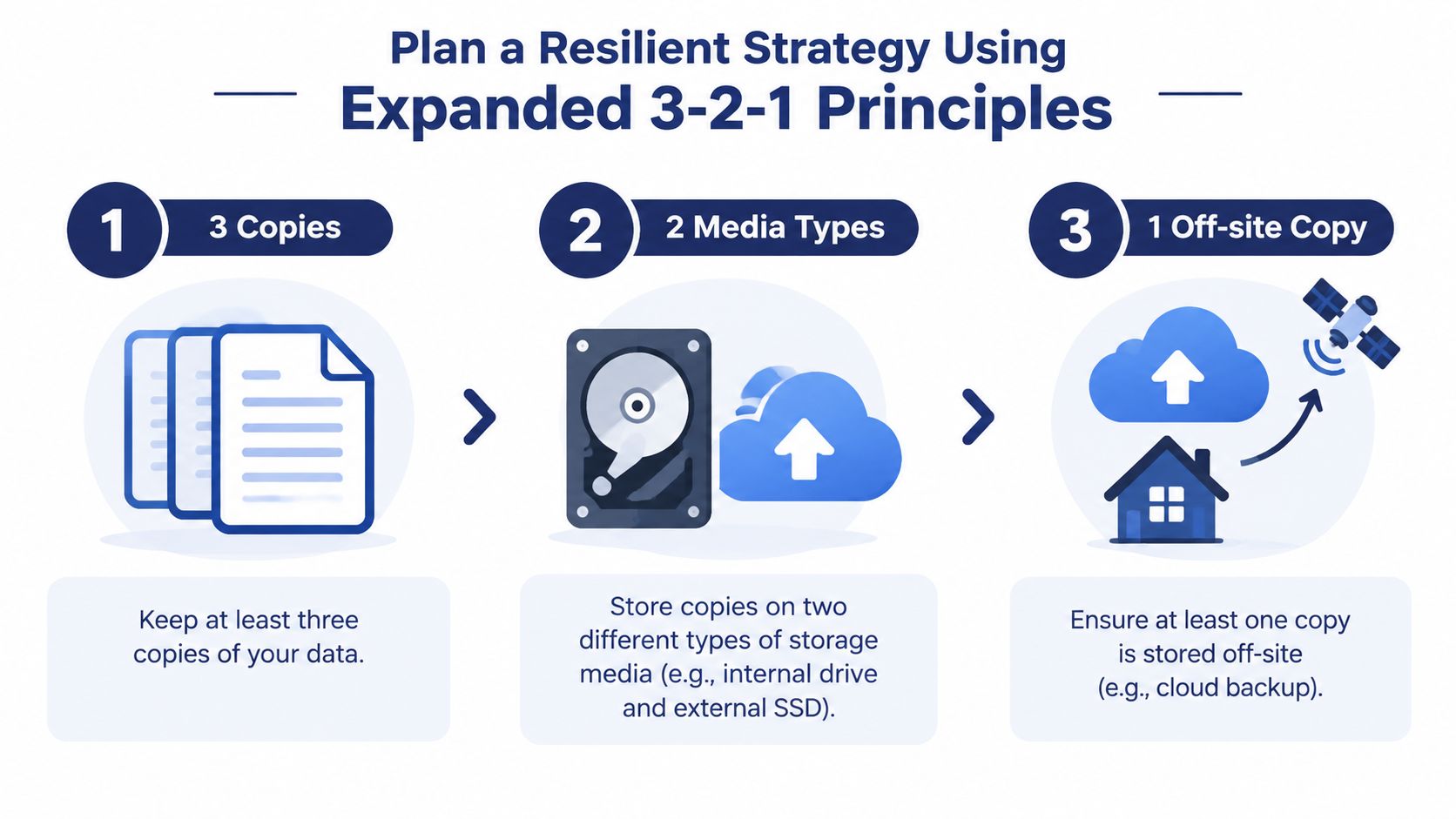
The traditional 3-2-1 rule means keeping three copies of important data, using two different storage types, and placing one copy off-site. The framework is widely cited because a single incident, such as theft, fire, device failure, or ransomware, shouldn't be able to remove every copy at once. Modern versions add an immutable or offline copy and aim for zero backup errors, creating the 3-2-1-1-0 model, as described in this overview of the 3-2-1 backup framework.
For a mobile budgeting workflow, the copies might look like this:
- Primary copy: The active records on your iPhone or Android device.
- Local backup: An exported file on an external USB drive, computer, or SD card where supported.
- Off-site backup: An encrypted file stored in iCloud or Google Drive.
- Offline or immutable layer: A removable drive disconnected after the backup, or storage configured so earlier versions can't be casually changed or deleted.
The phone's internal storage and a USB drive count as different physical locations only if you manage them separately. Keeping both copies in the same phone case or bag leaves them exposed to the same theft or loss event. Likewise, a cloud copy isn't automatically private just because it sits behind your account password.
Match the layers to your habits
If you manually update your budget most days, schedule exports often enough that losing the gap since the last export feels acceptable. If you enter transactions less frequently, an event-based export after a major account reconciliation may be more practical. The right plan is the one you'll follow.
Use different protection for different failure modes:
- Fast recovery: Keep a recent local file for accidental deletion or app problems.
- Theft protection: Store an encrypted copy away from the phone.
- Ransomware or account compromise protection: Keep an offline copy and separate its credentials from your everyday device.
- Privacy protection: Encrypt raw exports before they reach a third-party cloud service.
A 3-2-1 plan gives you redundancy. The expanded model adds resistance to deletion and corruption. Neither replaces restore testing.
Set Up Secure Local Backups on Your Device
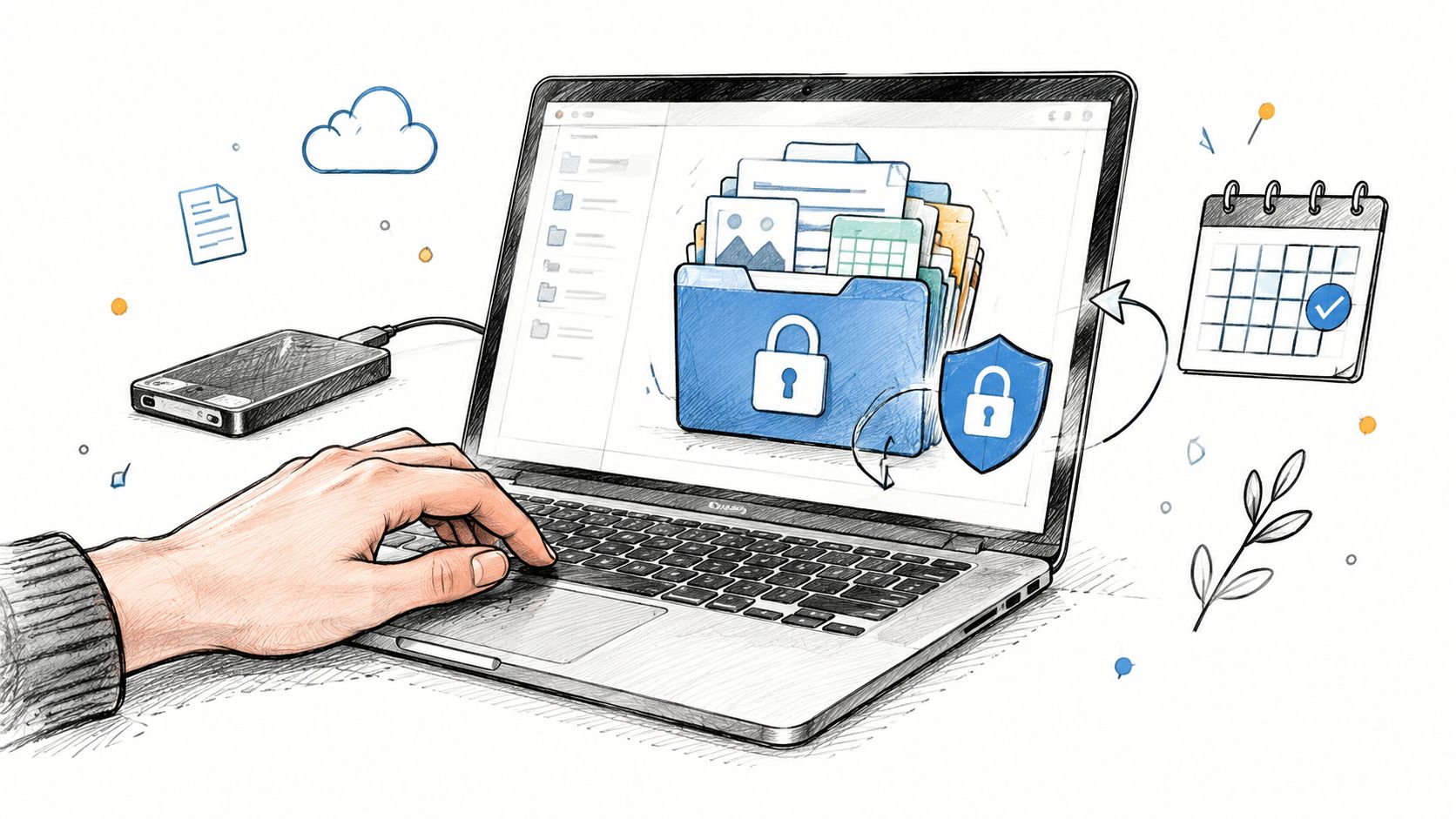
Local backups are quick, private, and often easier to verify than cloud copies. Start by exporting your finance records from the app into the iOS Files app or an Android file location, then move that file to storage that isn't dependent on the phone remaining functional.
For Ledgerly users, the app supports CSV export, and this guide to opening a CSV export in Excel explains how to work with the resulting file. Export after a meaningful batch of entries, before changing your budget structure, and whenever you finish reconciling balances.
A practical local workflow
- Export the records. Use the app's export function and choose a clear filename containing the date and coverage period. Avoid putting account numbers or other sensitive details in the filename.
- Save outside the app. Store the export in Files on iOS or a protected local folder on Android. Don't leave the only backup inside the app's private storage.
- Copy to separate media. Move an additional copy to an encrypted computer drive, external SSD, USB drive, or supported SD card. Eject removable media after copying.
- Protect access. Use a strong device passcode, enable biometrics as a convenience layer, and turn on the app lock where available. Device protection helps prevent casual access, but it doesn't replace file encryption.
- Verify the file. Open a duplicate, confirm that expected columns and recent transactions appear, and check that the file isn't empty or truncated.
iPhone and Android considerations
On iPhone, use the Files app to organize exports, then copy them to a Mac, PC, or encrypted removable drive. Apple's device backup can protect app data, but you should still keep an independently exported file so you aren't relying on one restoration path.
On Android, use the system backup settings where available, but confirm what the service includes. An app reinstall and a device backup aren't the same as a tested export. Copy the file to a computer or removable drive, and keep the drive disconnected when it isn't being used.
Set a calendar reminder tied to your budgeting routine. A recurring reminder is more dependable than hoping you'll remember after a busy week. If you can't complete the export immediately, mark the reminder as pending rather than neglecting it.
Implement Encrypted Cloud Backups for Offsite Safety
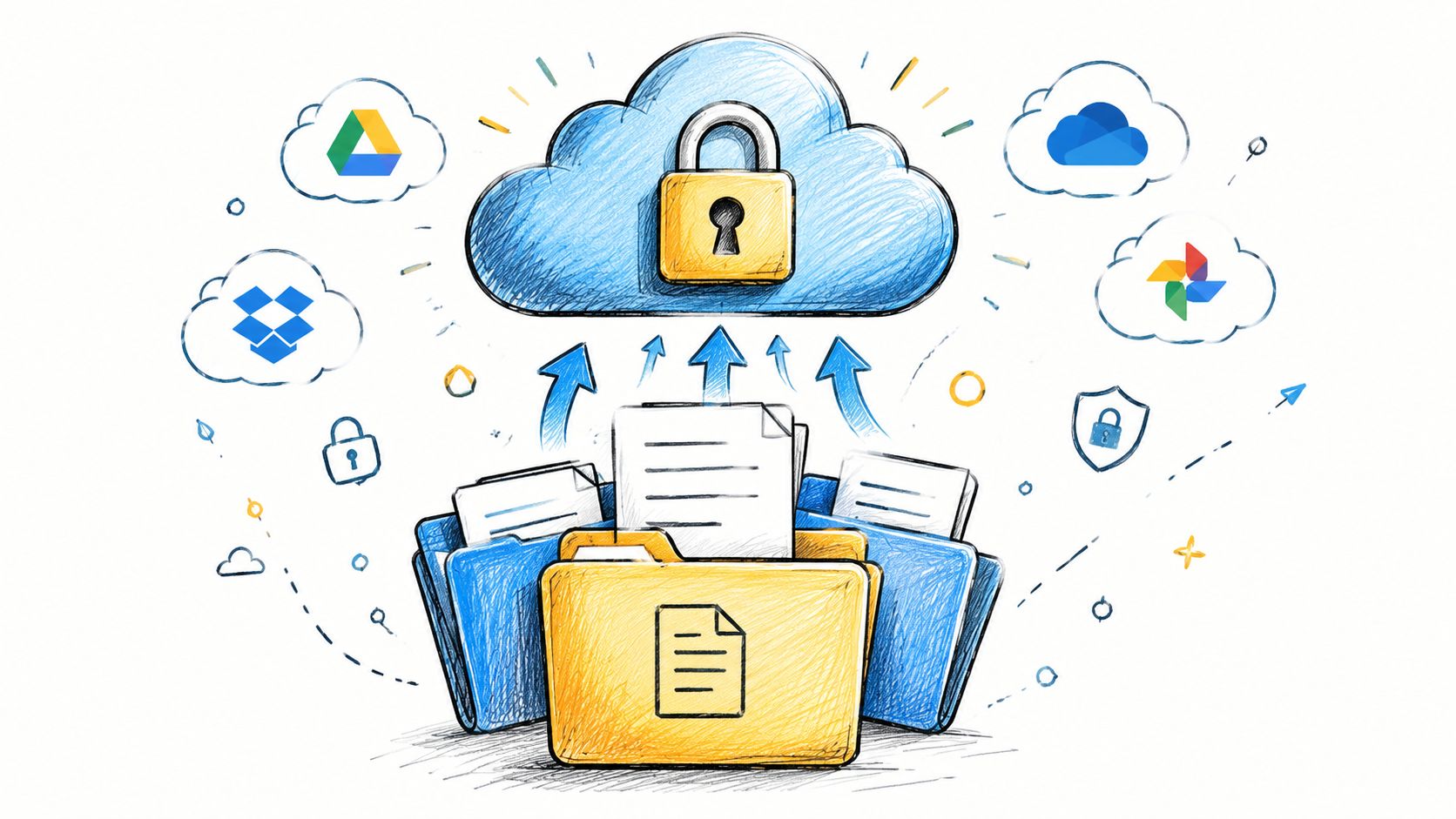
An off-site copy protects against a lost phone, theft, and physical damage at home. iCloud and Google Drive are convenient choices, but uploading a raw CSV exposes sensitive information to the cloud account and its administrators if the storage design doesn't provide the privacy you need.
Encrypt the export before uploading it. Use a reputable, actively maintained encryption tool or an operating-system feature that creates a password-protected encrypted archive. Choose a long, unique passphrase and store it in a password manager, not in the same folder as the encrypted file.
Keep the cloud copy private
Create a dedicated backup folder with restricted sharing. Review account recovery methods, enable multifactor authentication, and avoid signing into the cloud account on devices you don't trust. If you use an encryption tool, test decryption on a separate device before treating the upload as a valid backup.
The convenience trade-off is real:
- Automatic syncing reduces forgotten backups, but a compromised account may expose or delete synchronized files.
- Manual encrypted uploads give you more control, but they depend on your routine.
- Provider-managed encryption is easier to use, but you may have less control over the keys.
- Client-side encryption protects the file before upload, but losing the passphrase can make the backup unrecoverable.
Use separate credentials for the cloud account and the encryption key. If the same password grants access to both, one stolen credential can defeat multiple layers. Industry guidance increasingly emphasizes immutable backups alongside segmentation and separate management access. One industry summary of ransomware-resistant backup principles reports that over 90% of IT leaders agreed on core principles that include immutable backups. For a personal setup, an offline removable copy and separate credentials provide a simpler version of that protection.
Define Retention and Versioning Strategies
A backup that constantly overwrites yesterday's file can preserve the latest state while destroying the history needed to undo an accidental edit. Versioning gives you recovery points, which matters when you discover a missing transaction or incorrect balance after the error has already propagated across synced storage.
Start with your recovery point objective, meaning how much recent work you're willing to recreate manually. Then choose a retention policy that matches your entry habits and available storage. Personal finance exports are usually compact, so preserving several dated versions may offer more value than aggressively deleting them.
Choose a policy deliberately
A time-based policy is easy to understand. You might keep recent exports closely spaced, then retain older checkpoint files less frequently. An event-driven policy adds versions before major changes, such as restructuring categories, closing an account, correcting a historical balance, or importing a large batch of transactions.
| Policy | Description | Pros | Cons |
|---|---|---|---|
| Time-based | Keep dated copies according to a recurring schedule | Simple to automate and audit | May create unnecessary copies during quiet periods |
| Event-driven | Create a copy before important budget or account changes | Captures meaningful states and limits clutter | Depends on remembering the trigger |
| Rolling hybrid | Combine scheduled exports with event-based checkpoints | Balances routine protection and flexibility | Requires clear naming and periodic cleanup |
| Permanent archive | Preserve selected financial history indefinitely | Useful for long-term reference and auditability | Requires careful encryption, storage, and access management |
Name files consistently, for example by date, budget period, and source device. Don't use a generic filename that cloud syncing will repeatedly overwrite. Keep the original export unchanged, and work on a duplicate if you need to sort or analyze it.
Purge without losing useful history
Before deleting old files, confirm that a newer copy opens correctly and that at least one separate recovery path exists. Delete duplicates from every synchronized location, not just one device, and remember that a deleted cloud file may remain in a recycle area.
Retention should also account for privacy. Keeping every raw export forever increases the number of files that could be exposed. Archive only what you can justify, encrypt it, and remove obsolete copies from devices and services you no longer use. A practical program also requires restore validation in an isolated environment, permission checks, and timing against a defined recovery objective, as outlined in this backup and restore testing guidance.
Test and Validate Restore Procedures Regularly
A successful backup job proves that a file was written. It doesn't prove that the file opens, contains the latest records, uses the expected format, or can be restored quickly on a replacement device. Backup behavior surveys reported that only 10% of IT users backed up daily, while only 61% of restores succeeded, according to this backup statistics summary.
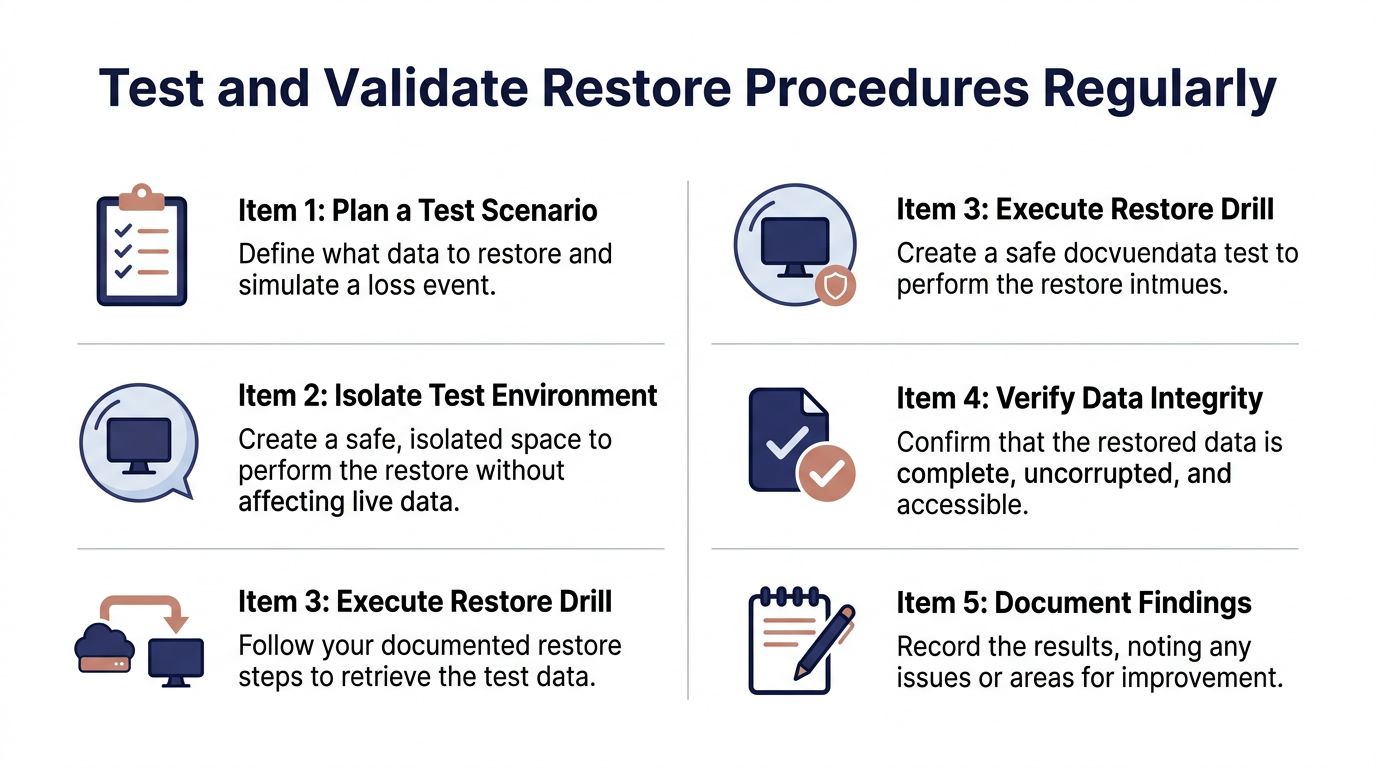
A restore drill can be simple. Use a spare phone, a separate computer account, or an isolated folder that won't overwrite your live budget. Start with the encrypted cloud copy, then repeat the process with the local export so you know whether both routes work.
Run a meaningful drill
- Define the scenario. Pretend the phone is unavailable and identify the exact file and app state you'd need.
- Isolate the environment. Use a spare device or separate workspace so the test cannot alter live records.
- Decrypt and restore. Retrieve the local or cloud copy, enter the passphrase, and follow the normal import or restoration process.
- Check integrity. Confirm recent transactions, recurring items, account totals, transfers, categories, and notes. Compare the restored file with the source export.
- Record the result. Write down the date, source used, problems encountered, and time required.
For Ledgerly users, this CSV export and file guide can help clarify the export workflow before you run a drill. Don't test only the easiest local copy. Cloud access, encryption keys, permissions, and download steps are often where recovery plans fail.
Schedule testing according to the cost of losing recent entries and the speed at which you'd need to resume budgeting. After each drill, fix one weak point immediately, whether that's an unclear filename, an expired login, a missing passphrase, or an export that doesn't contain the expected records.
Conclusion with Privacy Tradeoffs and Pro Tips
Privacy and convenience pull in opposite directions. Local-only storage keeps your finance records under your control, while encrypted cloud storage improves recovery after device loss. Automation reduces forgotten backups, but manual exports and offline copies give you more control over timing, access, and encryption keys. The right balance depends on how much recent data you can recreate and how much effort you'll maintain.
Use 3-2-1-1, retain meaningful versions, encrypt before cloud upload, keep an offline copy, and run restore drills. Recent guidance found that more than 60% of organizations believed they could recover from downtime within hours, but only 35% managed to, reinforcing the value of tested recovery rather than passive storage, as reported in the 2025 backup and recovery report. For broader context on evaluating a budgeting tool's privacy and workflow fit, review this guide on whether budgeting apps are worth it.
Ledgerly keeps manually entered financial data on your iOS or Android device and offers optional local file, iCloud, and Google Drive backups, so you can choose the privacy and convenience balance that fits your routine. Visit Ledgerly to set up your budget, export your records, and build a backup workflow you can restore.