September 1, 2026
Csv Export Excel
Learn a reliable csv export excel workflow for Ledgerly, Windows, and Mac, including delimiters, dates, encoding, and common import fixes.
csv export excelLedgerlyExcel importCSV delimitersdata integrity

You export a budget from your phone, open the CSV in Excel, and the sheet appears tidy. The columns line up, the totals look familiar, and you start preparing a report. Later, an account number no longer has its leading zeros, a date appears in a different regional format, or names with accented characters display as unreadable symbols. The file opened successfully, but Excel may have changed the meaning of the data.
A dependable CSV export to Excel workflow treats the handoff as a data-integrity task, not just a download. The export must preserve values, delimiters, encoding, and column types from the original budget through import and into the workbook you share.
Table of Contents
- Why CSV Export to Excel Can Mislead
- Preparing a Ledgerly CSV Export
- Importing CSV Files in Excel
- Choosing Delimiters Across Locales
- Preserving Dates and Sensitive Values
- Fixing Common CSV Import Issues
- A Reliable Export and Verification Checklist
Why CSV Export to Excel Can Mislead
CSV is a remarkably portable format because it stores values without workbook formatting. It can move tabular data between apps, databases, spreadsheets, and public data systems, but that simplicity also means the receiving application has to interpret the file. The format predates personal computers by more than a decade, its abbreviation was already in use by 1983, and RFC 4180 provided a major formal standardization milestone in 2005. The history and structure of CSV help explain why it remains an interchange format rather than a native Excel workbook.
Excel may apply guesses as soon as it opens a CSV. It can use the operating system's list separator, infer dates from regional settings, treat identifiers as numbers, and interpret long numeric strings as scientific notation. An apparently clean workbook can therefore differ from the raw export even when no warning appears.
Practical rule: A CSV that opens without an error message hasn't necessarily preserved the source data.
The risk becomes visible during reconciliation, filtering, joins, or pivot-table work. A postal code with a missing leading zero may no longer match an external record. A date interpreted as month-first instead of day-first can move a transaction into the wrong reporting period. Text encoded incorrectly can make payee or category names impossible to search consistently.
Before sharing a workbook, compare it with the original export. Confirm the row count, inspect representative account and transaction references, and check dates and special characters. For a plain-language explanation of what the file represents before Excel gets involved, see what exporting to CSV means.
Preparing a Ledgerly CSV Export
Start with the source, not Excel. In Ledgerly, close the active budget before exporting so pending edits are flushed, then check that the visible totals cover the intended period and accounts. A CSV is only useful if its scope is clear, especially when a household has separate budgets for personal spending, shared costs, or side projects.
Choose a folder you control. A project folder or dedicated export directory is safer than a temporary downloads location that may be cleared or mixed with older files. Keep the original file untouched, and use a filename that identifies the budget and export context without relying on memory later.
If Ledgerly offers an encoding choice, use UTF-8 for labels, payee names, and notes containing accented or non-Latin characters. Excel-facing files may need a UTF-8 BOM, which is the three-byte marker EF BB BF that helps Excel recognize the encoding. That marker can also contaminate the first header if an importer doesn't remove it, so inspect the opening header rather than assuming the marker solved everything. The Ledgerly CSV export file guide provides the product context for working with the exported file.
Check the file before Excel
Open the CSV in a plain text editor first. Notepad on Windows or TextEdit on macOS can reveal whether fields are separated by commas, semicolons, or tabs, whether the first header contains an unexpected character, and whether the final rows are present.
Record the export confirmation time and match it to the file you intend to share. Then check:
- Scope: The selected budget, accounts, and date range match the report.
- Headers: Column names are present and readable on the first line.
- Structure: Rows use a consistent delimiter and quoting pattern.
- Completeness: The source view and file contain the expected records.
- Encoding: Accented names and notes remain readable in the text editor.
Pick the delimiter for the recipient's Excel environment, not merely for your own laptop. A comma may suit an English-language installation, while a semicolon may be more reliable where comma decimals are standard. For a workbook shared across regions, tab separation can reduce ambiguity when every participant imports deliberately.
Importing CSV Files in Excel
Double-clicking a CSV is convenient, but it gives Excel too much control over interpretation. A deliberate import lets you choose the encoding, delimiter, and data type before the worksheet is built. That matters because Excel can convert raw text into dates, numbers, or scientific notation during direct opening.
Windows workflow
In Excel for Windows, open a blank workbook and choose Data, then From Text/CSV. Browse to the Ledgerly file and inspect the preview rather than accepting automatic detection.
Set File Origin to 65001: UTF-8 when that matches the exported file. Choose the delimiter explicitly, using the character you observed in Notepad. If the preview shows one wide column, stop there and correct the delimiter. Continuing with a collapsed preview makes later repair harder.
Use the import controls to assign Text to fields that must remain exact. Account IDs, transaction references, postal codes, and date strings intended for later processing shouldn't be left to General formatting. If you need Excel to perform date calculations immediately, choose Date and match the source arrangement. If the date is an identifier-like string or another system will parse it later, import it as Text.
Import decisions belong at the boundary. Once Excel has converted a value, changing the cell format may not restore the original text.
After the preview looks correct, load the data into the workbook. Freeze the header row, adjust column widths for inspection, and save immediately as .xlsx. That creates a workbook whose imported column types are easier to control than an open CSV that remains vulnerable to another accidental save.
macOS workflow
On macOS, use File, Import, and select the CSV. Choose Unicode UTF-8 and the delimiter that matches the file. The exact labels can vary by Excel version, but the principle remains consistent: use the import path instead of opening the file directly.
Review the first and last visible records after import. Check an account field with zeros, a long reference, a date near a regional ambiguity, and a name containing an accent. Then save as .xlsx before sorting, filtering, or adding formulas.
A workbook created this way becomes a working copy, not the canonical record. Keep the untouched CSV alongside it so you can re-import cleanly if someone changes a column type or edits source values.
Choosing Delimiters Across Locales
A CSV doesn't guarantee that every Excel installation will interpret its separator the same way. Excel often follows the operating system's regional list separator, so a comma-separated file may open as one column where the installation expects semicolons. This is especially common in regions where the comma serves as the decimal separator.
The safest test takes less than a minute. Open the file in Notepad or TextEdit and look between two ordinary fields. If you see commas, the file is comma-delimited. If you see semicolons, select semicolon during import. If the fields are separated by visible spacing or tabs, select tab rather than asking Excel to guess.
Delimiter behavior across common locales
| Delimiter | US/UK Excel | German/French Excel | Typical use |
|---|---|---|---|
| Comma | Often the expected separator | May require explicit import selection | English-language exports and APIs |
| Semicolon | May open as one column if the regional setting expects commas | Often aligns better with comma-decimal conventions | European regional workflows |
| Tab | Usually reliable when selected during import | Usually reliable when selected during import | Shared workbooks crossing regions |
The file itself doesn't change just because it travels from a Windows laptop to a Mac. The receiving Excel installation and opening method determine how the fields are interpreted. A comma-delimited Ledgerly export may work on one machine and collapse on another if one user double-clicks it under different regional settings.
For multilingual households, re-exporting isn't always necessary. Keep the original file, tell the recipient which delimiter it uses, and require import through Excel's data workflow. For accounting teams that exchange files repeatedly, standardize one delimiter and document it beside the export.
UTF-8 with a BOM can help Excel recognize accented characters, but older setups may still mishandle the marker or show it in the first header. If the first heading looks like name, remove the marker through a proper import or text-processing step instead of editing financial rows manually.
Preserving Dates and Sensitive Values
Excel's strongest convenience is also its main CSV risk. It tries to turn text into useful spreadsheet types, but a budgeting file often contains values that only look numeric or date-like. Account numbers, transaction references, postal codes, and ISO date strings can lose their original form even when the underlying record was correct.
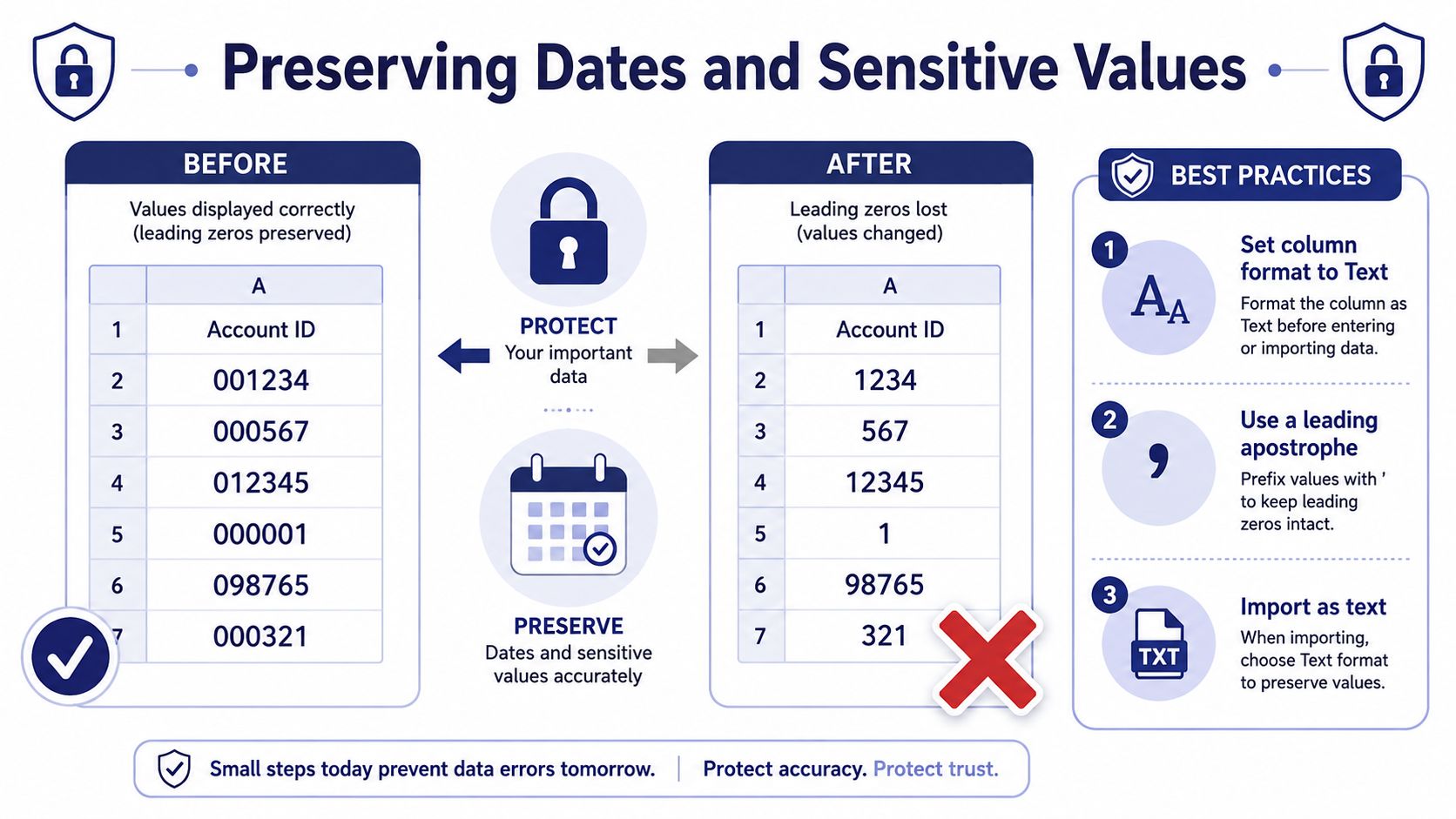
A value such as 001234 is an identifier, not a quantity. If Excel imports it as a number, it can display as 1234. Long numeric strings may switch to scientific notation, while dates can be reinterpreted according to regional conventions such as DD/MM/YYYY and MM/DD/YYYY. Currency symbols may also be treated as formatting rather than part of the original text.
Assign types before the conversion
Use Data > From Text/CSV on Windows or the import workflow on macOS. In the preview, assign Text to every column whose characters must remain unchanged. Assign Date only when you want Excel to calculate with the value and you know the source format matches the selected interpretation.
A leading apostrophe can force a value to behave as text in a worksheet, but it's a last resort for manually corrected cells. It creates a presentation workaround rather than fixing the import rule, so column-level type assignment is cleaner for repeatable exports. The Ledgerly CSV examples can help you identify the fields that need closer inspection.
| Column type | Recommended import choice | Verification |
|---|---|---|
| Account IDs and references | Text | Compare characters, including leading zeros |
| Postal or product codes | Text | Check values that begin with zero |
| Long numeric identifiers | Text | Confirm they don't display in scientific notation |
| Source date strings | Text, unless calculations are required | Compare the original character sequence |
| Calculation-ready dates | Date with matching source format | Check day and month interpretation |
| Notes and payee names | Text or General after encoding review | Search for accents and non-Latin characters |
| Amounts intended for arithmetic | Number | Reconcile totals against the source |
Run a verification pass after loading the workbook. Sample five rows from different parts of the sheet, including the first and last records, and reconcile them with the Ledgerly view or untouched CSV. Check the record count, account references, dates, and amounts. If the workbook has already been opened and saved directly from CSV, treat it as transformed data and revalidate it before using it downstream.
Fixing Common CSV Import Issues
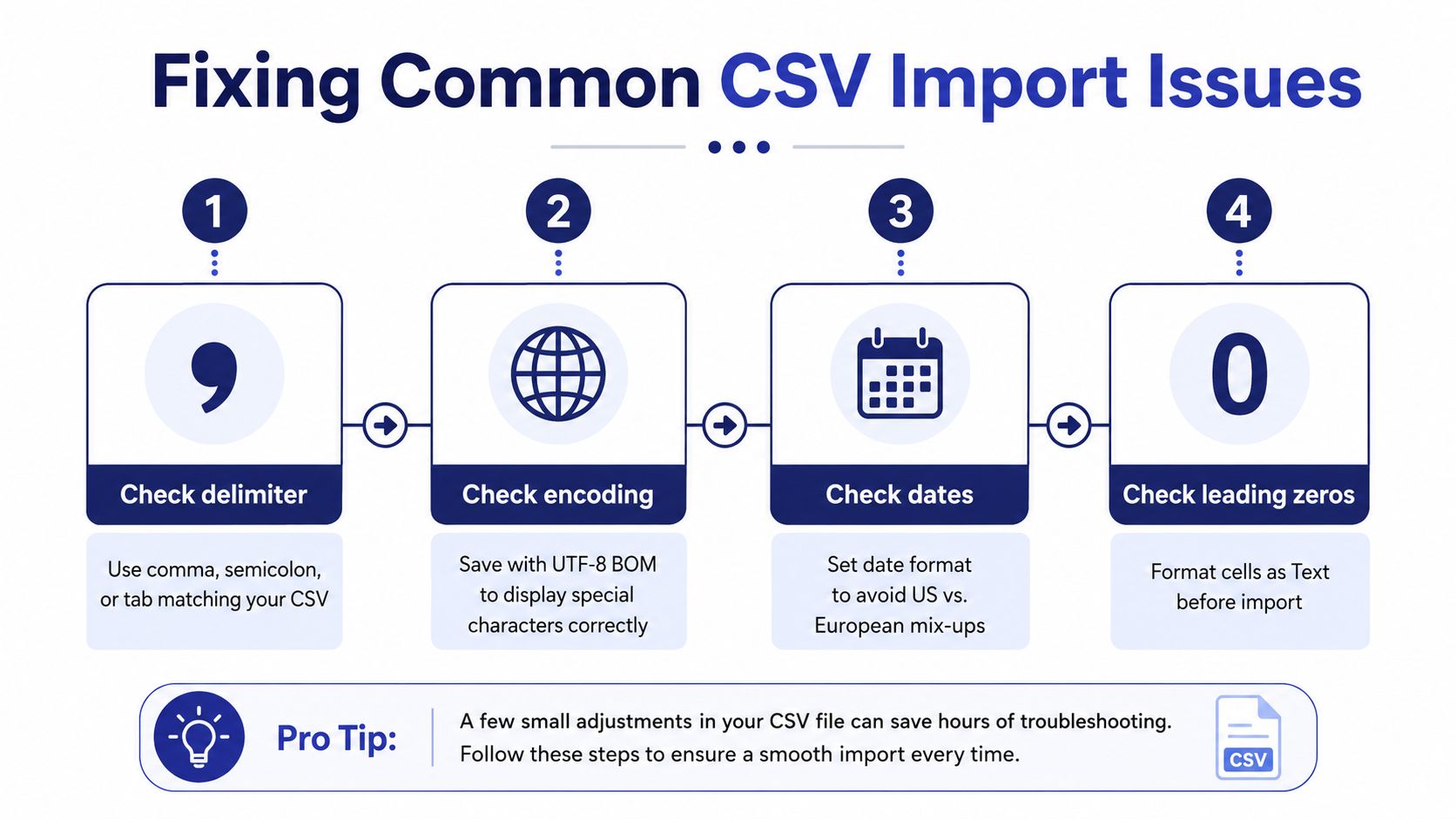
Troubleshooting is faster when you start with the visible symptom rather than changing several settings at once.
The sheet shows one column
Open the CSV in Notepad or TextEdit and identify the actual separator. Return to From Text/CSV or the macOS import dialog, choose that delimiter explicitly, and reload. If the source uses commas but the recipient's regional settings expect semicolons, don't repair every row in Excel. Re-import the original file with the correct selection.
Accented names appear corrupted
Characters such as accented letters may become mojibake when Excel uses the wrong code page. Re-import with UTF-8 or Unicode UTF-8, and inspect the first header for a visible BOM marker. If the file was exported without the encoding you need, produce a clean export rather than copying damaged text into a new workbook.
Dates are shifted or display as serial values
Check the original text before changing cell formatting. A shifted date usually indicates that Excel interpreted the source under the wrong regional convention, while a serial value may be a date stored as a number. Re-import the column as Text, or select Date with the source's actual arrangement, then compare sample records against the original.
Rows appear to be missing
Compare the last line in the plain-text file with the source view and check whether a filter is hiding imported rows. If the CSV ends abruptly or the row count differs, make a fresh Ledgerly export and compare again. Repairing a partially written or incorrectly scoped file inside Excel can conceal the source problem.
Re-export when: The source scope is uncertain, the file ends unexpectedly, or Excel has already rewritten several sensitive columns.
Save the clean CSV separately, import it into a new workbook, and validate before sharing. A corrected workbook is useful for analysis, but it shouldn't replace the untouched export as your reference file.
A Reliable Export and Verification Checklist
Use this sequence every time:
- Confirm scope: Check the Ledgerly budget, accounts, and date range before exporting.
- Preserve the original: Save the CSV untouched and inspect it in a text editor.
- Match the delimiter: Choose comma, semicolon, or tab based on the file and recipient's locale.
- Set encoding: Use UTF-8 and confirm special characters in the import preview.
- Assign sensitive columns: Mark IDs, leading-zero values, long references, and ambiguous dates as Text where needed.
- Validate the workbook: Compare row count, sample records, dates, names, and totals with the source.
CSV is appropriate for ad-hoc analysis and controlled spreadsheet work. For archival records, recurring reconciliations, or accountant handoffs, keep the untouched export or another canonical Ledgerly record as the authority, because an .xlsx workbook may contain later edits and Excel type conversions.
Ledgerly keeps budgeting data on your device and lets you export recorded financial data as CSV for spreadsheet analysis, so you can control when a file leaves the app and how Excel receives it. Visit Ledgerly to review the offline budgeting workflow, then test one export with the delimiter and validation checks above before relying on it for reconciliation or sharing.