August 27, 2026
CSV Export File Explained: Structure, Encoding
Learn what a CSV export file is, how its structure and encoding work, and how to open, import, and back up your data safely from apps like Ledgerly.
csv export filecsv formatdata exportcsv encodingbackup csv
You've exported your budget, opened the file, and discovered that the neat columns you expected have become unreadable text, misplaced values, or strange characters. The file may look perfect inside your budgeting app, yet fail when opened in Excel, imported into another tool, or saved again for backup.
A CSV export file is simple on the surface, but a few invisible choices determine whether it works reliably. Delimiters, character encoding, the UTF-8 byte order mark, and line endings all sit beneath the visible table. Understanding those details helps you protect financial records, move data between tools, and recover from an export that appears broken.
Table of Contents
- What a CSV Export File Actually Is
- The Anatomy of a CSV File
- Encoding and Metadata That Break Your Export
- How to Open Import and Back Up CSV Data
- CSV Compared to Other Export Formats
- Your CSV Export Checklist
What a CSV Export File Actually Is
Suppose you've spent months recording groceries, rent, transfers, and subscriptions in a privacy-first budgeting app such as Ledgerly. You select an export option, download a file ending in .csv, and wonder whether it's a backup, a spreadsheet, or something else entirely.
A CSV file is a plain text document containing tabular data. Each line represents a record, and commas separate the values within that record. The format's name comes from “comma-separated values,” although real-world files can use other delimiters when regional settings require them.
You can read the file in a basic text editor, open it in Microsoft Excel, import it into Google Sheets, or process it with a database or programming language. That broad compatibility is the main reason apps use CSV for exports. The format isn't tied to one company's software, so your data is easier to move, inspect, and preserve. The plain-language explanation of exporting to CSV gives the same practical framing for people who are new to exported data.
What the file keeps
A budgeting export can preserve the actual values behind your records, such as:
- Dates: When a transaction was recorded.
- Categories: The label assigned to the transaction.
- Descriptions: Notes or merchant details.
- Amounts: Numeric values representing income, spending, or transfers.
- Accounts: The account connected with each record.
The file usually doesn't preserve the visual experience of the original app. It won't carry over dashboard layouts, colors, formulas, charts, buttons, or embedded images unless another format specifically supports those features.
Practical rule: Treat the first downloaded CSV as a raw data record, not as a finished spreadsheet.
That simplicity has an important limitation. A CSV file stores values and their order, but it doesn't always explain how another program should interpret dates, decimal separators, currencies, or character encoding. Two applications can open the same file differently if they make different assumptions about those details.
The format itself has a long history. IBM's OS/360 Fortran compiler supported list-directed input and output with commas between values in 1972, and the term CSV was already in use by 1983. The format was documented in RFC 4180 in October 2005, which also registered the text/csv MIME type and gave the commonly used structure a shared internet specification. You can review that history in the CSV format overview.
The Anatomy of a CSV File
Open a CSV export in Notepad, TextEdit, or another plain text editor. You'll see the underlying structure without the formatting that spreadsheet software adds.
A budgeting file might look like this:
Date,Category,Description,Amount
2024-01-15,Groceries,Weekly shopping,-87.50
2024-01-16,Transport,Bus pass,-25.00
2024-01-31,Income,Salary,2400.00
The first line contains headers. Each header names a column, so the first value in every later row belongs under Date, the second under Category, and so on. The next lines are records. In the first transaction row, 2024-01-15 is the date, Groceries is the category, Weekly shopping is the description, and -87.50 is the amount.
The comma is the delimiter in this example. RFC 4180 describes one record per line, comma-separated fields, and CRLF line breaks. UK government guidance recommends RFC 4180 CSV for publishing tabular data, which shows how this straightforward structure remains useful in public-sector data exchange. The UK tabular data standard explains that recommendation.
Reading the structure line by line
| Line Number | Content | Purpose |
|---|---|---|
| 1 | Date,Category,Description,Amount |
Names the fields |
| 2 | 2024-01-15,Groceries,Weekly shopping,-87.50 |
Stores one transaction |
| 3 | 2024-01-16,Transport,Bus pass,-25.00 |
Stores another transaction |
| 4 | 2024-01-31,Income,Salary,2400.00 |
Stores an income record |
A field containing a comma needs special handling. For example:
2024-02-02,Cafes,"Coffee, specialty blend",-6.75
The quotation marks tell the importer that the comma belongs inside the description. The same rule applies to fields containing quotation marks or line breaks. A quote inside a quoted value is escaped by using two quotation marks.
Empty values appear as adjacent commas:
2024-02-03, Cash purchase,-12.00
The missing category is still a field. Removing that comma would shift every later value into the wrong column.
Look at the delimiters before changing anything. If the file uses semicolons instead of commas, selecting the wrong separator can place the entire row in one spreadsheet column.
Some regional settings use semicolons because the comma may already serve as a decimal separator. Date values can also vary. An ISO-style value such as 2024-01-15 is less ambiguous than a regional form such as 01/15/2024 or 15/01/2024. Numeric amounts may appear without currency symbols, which helps software parse them as numbers, but the receiving tool still needs to know how to interpret decimal marks.
For more examples of headers, quoted fields, empty values, and transaction rows, see these CSV export examples.
Encoding and Metadata That Break Your Export
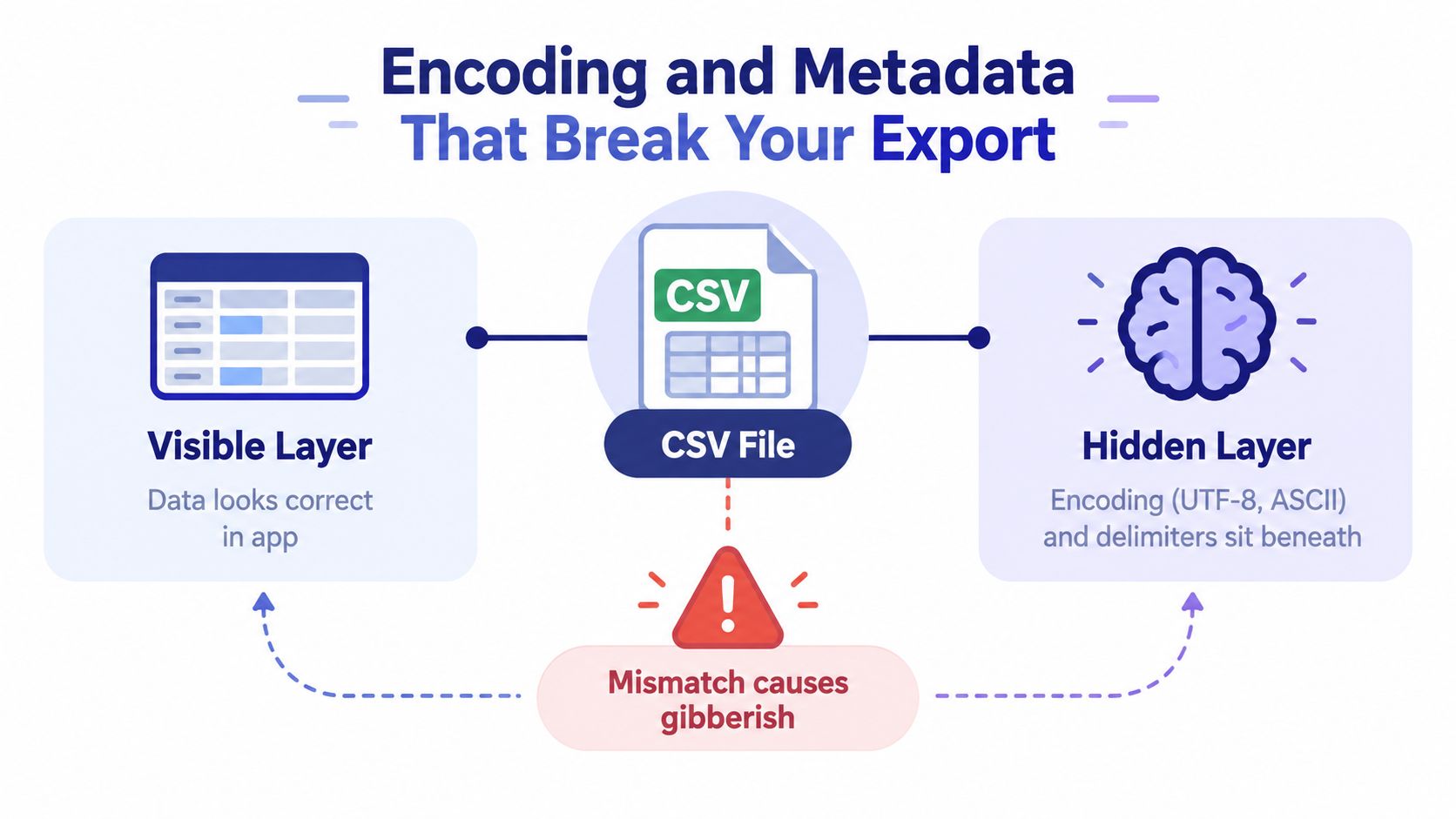
The visible table can be correct while the file's hidden metadata causes trouble. Character encoding determines how software translates stored bytes into letters and symbols. If one program writes a name such as Café in one encoding and another program reads it using a different assumption, you may see garbled characters, replacement symbols, or missing text.
UTF-8 is widely used for modern CSV exports because it can represent accented names, non-Latin scripts, currency symbols, and emojis in notes. RFC 4180 doesn't define a character encoding, so exporters and importers need an agreed choice. In Excel-oriented workflows, a UTF-8 BOM, or byte order mark, is often added so spreadsheet software recognizes the encoding when a user opens the file directly. That extra marker can also confuse some database or automation tools, which may treat it as part of the first header unless they remove it.
Why line endings matter
Line endings mark where one record ends and the next begins. RFC 4180 describes CRLF line breaks, while other operating systems and tools commonly use LF. Most current applications handle both, but a strict or poorly configured importer may interpret the file incorrectly. A common symptom is that every record appears on one long line, or rows split unexpectedly inside a text field.
The standard also allows the last record to end with a line break or not. That small variation means importers should parse the final row tolerantly rather than reject a file solely because it lacks a final newline. The Library of Congress format description covers quoting, line endings, and the permitted final-record behavior.
A practical diagnosis
If Café becomes Café, suspect an encoding mismatch. If all data sits in one column, check the delimiter. If rows appear merged or split, inspect line endings and look for unescaped line breaks inside quoted fields.
A text editor that displays the current encoding can help you identify the problem. Re-save a working copy as UTF-8, choose the correct delimiter during import, and avoid overwriting the original until the repaired version has been tested. For globally distributed apps, delimiter and locale settings deserve the same attention as encoding. Guidance on UTF-8 BOM handling in CSV exports explains why the marker can improve direct spreadsheet opening while creating compatibility considerations elsewhere.
How to Open Import and Back Up CSV Data
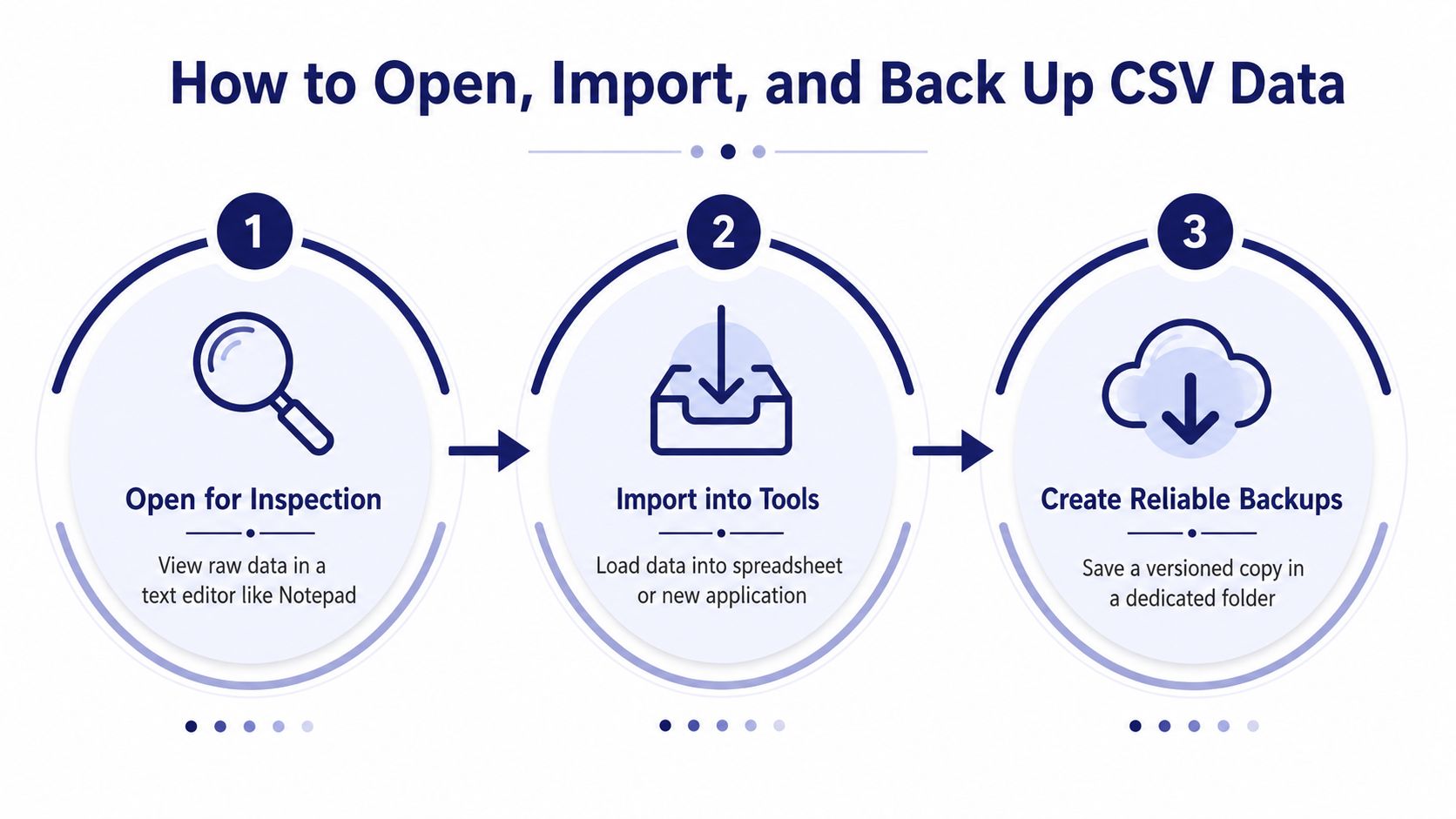
A CSV export usually serves three purposes: you inspect it, move it into another tool, and preserve it as a backup. Each action has a different risk, so don't treat opening the file and editing the file as the same thing.
Start with inspection. Open the original in a plain text editor such as Notepad or TextEdit before opening it in a spreadsheet. Confirm that the first row contains sensible headers, values are separated consistently, and special characters display correctly. This quick check shows you the raw structure without allowing spreadsheet software to reinterpret every value.
Import with deliberate choices
When you open the file in Excel, Google Sheets, or LibreOffice Calc, use the import settings instead of relying on automatic detection when the preview looks wrong.
- Choose the delimiter: Select comma, semicolon, tab, or the separator shown in the raw text.
- Choose the encoding: Select UTF-8 when the file contains accented names, international text, or symbols.
- Review the preview: Check that dates, descriptions, and amounts occupy the intended columns.
- Map fields: When importing into a tax tool, analytics dashboard, or accounting application, connect each CSV column to the receiving field.
- Check date interpretation: Make sure the destination tool won't swap day and month positions.
Excel can auto-format dates, remove leading zeroes, and convert values that look like numbers. It can also save changes back into CSV, discarding workbook features and potentially altering how values are represented. Keep the original untouched, and save analysis work as an Excel workbook when you need formulas or formatting.
Build a backup you can trust
Create a dedicated folder for raw exports, use a clear filename, and keep the downloaded file unchanged. A dated folder or filename makes it easier to identify the source period later without relying on memory.
After copying the file to cloud storage or an encrypted drive, verify the backup. Reopen the copied file, inspect the headers, review several transactions, and compare important totals with the source budgeting app. If the copied file opens differently from the original, stop and resolve that issue before deleting anything.
A backup isn't verified until you can open it and recognize the data.
For sensitive financial records, choose storage with appropriate access controls. A privacy-first budgeting workflow can keep the raw export local, while an optional encrypted backup gives you another recovery path. Avoid sending an unprotected CSV through channels where other people or services can access its contents.
CSV Compared to Other Export Formats
CSV is a strong choice when the priority is moving a flat table between unrelated tools. It's readable, widely supported, and simple to archive, but it isn't designed to preserve every feature of a modern spreadsheet or application database.
| Format | Readability | Portability | Supports Formatting | Best Use Case |
|---|---|---|---|---|
| CSV | High in plain text | Very high | No | Flat tables, backups, and broad data exchange |
| JSON | Moderate for non-technical users | High | No | Developer integrations and nested records |
| XLSX | High in spreadsheet software | Broad, with software dependencies | Yes | Formulas, visual analysis, and multiple sheets |
| OFX or QFX | Lower outside compatible tools | Limited by schema support | No | Structured financial imports |
| TSV | High in plain text | High | No | Tables where commas frequently appear in text |
JSON can represent nested objects and relationships that CSV flattens into rows and columns. That makes it useful for software integrations, but less convenient for someone who wants to inspect transactions in a spreadsheet.
XLSX keeps formulas, formatting, worksheets, and other workbook features. It's better for presentation or analysis inside spreadsheet software, but the file is more dependent on tools that understand its workbook structure. OFX and QFX follow more rigid financial schemas, which can help compatible banking and budgeting tools interpret transactions but leaves less flexibility for custom columns.
TSV uses tabs rather than commas. That can reduce quoting problems when descriptions regularly contain commas, although the receiving application must support tab-separated input.
Choose CSV when portability, raw readability, and long-term access matter most. Choose XLSX for a formatted working report, JSON for developer-facing data, and OFX or QFX when a target financial application specifically requires one of those schemas.
Your CSV Export Checklist
A reliable export routine starts before you press Download. In a privacy-first budgeting workflow, confirm the source data first, then test the file, and only afterward create copies for storage or analysis.
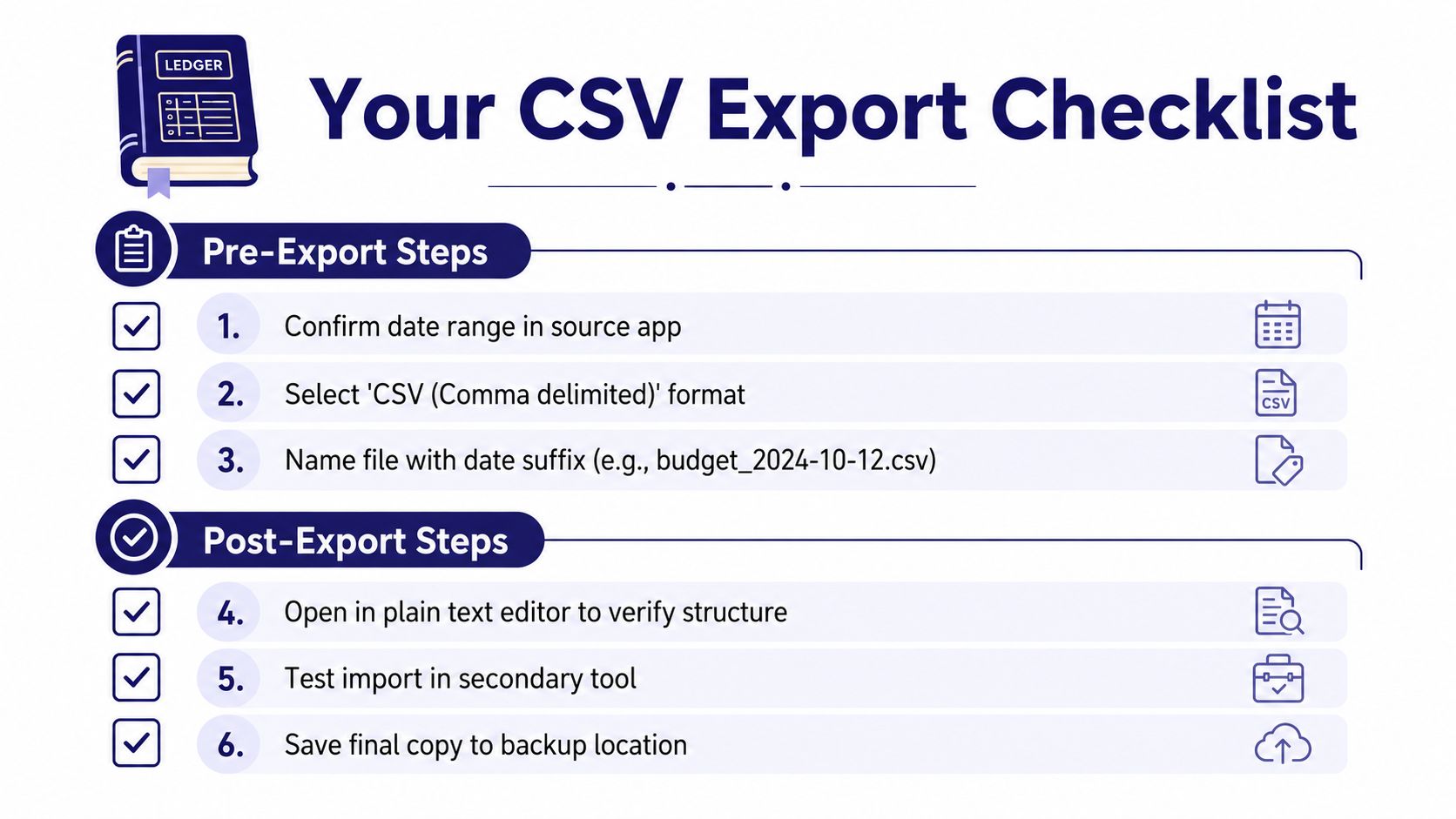
Pre-export checks
- Confirm the date range: Make sure the export includes the period you intend to preserve.
- Select the account scope: Include the right budget, account, or set of records.
- Review encoding settings: Choose UTF-8 when the app provides an encoding option, especially for international text.
- Record the filename: Use a meaningful name that identifies the data period and purpose.
- Keep the raw file: Don't begin by opening and saving the downloaded copy in Excel.
Post-export checks
- Inspect the text: Open the file in a plain text editor and confirm the headers, separators, and row layout.
- Test the display: Check names, notes, symbols, and accented characters for corruption.
- Compare records: Match the exported records with the source app and spot-check several amounts.
- Test the destination: Import a copy into the intended spreadsheet, tax tool, or analytics platform before relying on it.
- Store safely: Save the untouched original in a dated folder and place a copy in encrypted cloud storage or on an encrypted drive.
Repeat the routine during regular budget reviews or before tax preparation. If you want more practical guidance on organizing personal finance data, visit the Ledgerly budgeting resources.
The safest habit is simple: preserve the original, inspect the structure, confirm the encoding, and verify the backup. Ledgerly lets you record budget data on your device and export recorded data as CSV for use in spreadsheets or other tools. Visit Ledgerly to explore a privacy-focused way to manage your budget and keep control of your financial records.